
Omarchy on macOS: AeroSpace + Karabiner Setup Guide (for Claude Code)
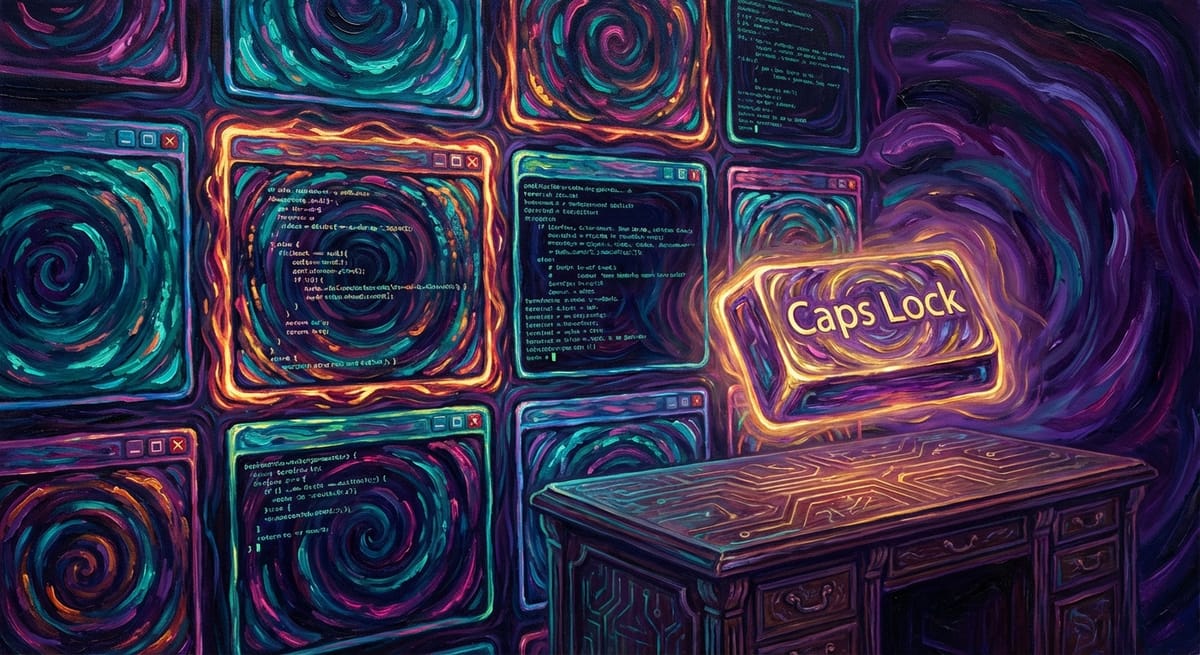
I've been running a tiling window manager setup on macOS that gives me most of what Omarchy offers on Linux — keyboard-driven workspaces, vim-style navigation, no mouse needed — without leaving the Apple ecosystem. This post documents the full setup so that another Claude Code instance can replicate it from scratch.
What This Replaces
Omarchy (DHH's Arch Linux distro) uses Hyprland as its tiling compositor with the Super key as the primary modifier. This macOS setup achieves the same workflow using:
| Omarchy Component | macOS Equivalent |
|---|---|
| Hyprland (tiling WM) | AeroSpace |
| Super key modifier | Karabiner-Elements (Caps Lock → Ctrl+Alt) |
| Window borders | JankyBorders |
| Alacritty/Ghostty | WezTerm |
The key insight: Karabiner remaps Caps Lock to Ctrl+Alt, which becomes the universal modifier for all AeroSpace bindings. One little finger on Caps Lock and you have full tiling control — just like Omarchy's Super key.
Prerequisites
Install via Homebrew:
brew install --cask aerospace
brew install --cask karabiner-elements
brew install --cask wezterm
brew install felixkratz/formulae/borders
Step 1: Karabiner-Elements — The Hyper Key
This is the foundation. Karabiner remaps Caps Lock to simultaneously press left_control + left_option (i.e. Ctrl+Alt). This gives you a dedicated modifier key that doesn't conflict with any standard macOS shortcuts.
Write this to ~/.config/karabiner/karabiner.json:
{
    "profiles": [
        {
            "name": "Default profile",
            "selected": true,
            "simple_modifications": [
                {
                    "from": { "key_code": "caps_lock" },
                    "to": [{ "key_code": "left_option", "modifiers": ["left_control"] }]
                }
            ]
        }
    ]
}
ISO keyboard users (European keyboards): also add these swaps to fix the backtick/tilde key position:
{
    "from": { "key_code": "grave_accent_and_tilde" },
    "to": [{ "key_code": "non_us_backslash" }]
},
{
    "from": { "key_code": "non_us_backslash" },
    "to": [{ "key_code": "grave_accent_and_tilde" }]
}
If the keyboard is ISO, also set "virtual_hid_keyboard": { "keyboard_type_v2": "iso" } in the profile, and add the device identifiers block with "keyboard_type": "iso".
Step 2: AeroSpace — The Tiling Window Manager
AeroSpace is the heart of the setup. It's a native macOS tiling WM inspired by i3, and it works without disabling SIP (unlike yabai[footnote]I tried and did build all this with yabai... and then switched to Aerospace because yabai didn't quite work right or reliably. My suggestion: just use Aerospace.[/footnote]). Write this to ~/.aerospace.toml:
# Start JankyBorders on launch for visual window focus feedback
after-startup-command = [
  'exec-and-forget borders active_color=0xffe1e3e4 inactive_color=0xff494d64 width=5.0'
]

start-at-login = false

# Normalization keeps the window tree clean
enable-normalization-flatten-containers = true
enable-normalization-opposite-orientation-for-nested-containers = true

accordion-padding = 30
default-root-container-layout = 'tiles'
default-root-container-orientation = 'auto'

# Mouse follows focus across monitors
on-focused-monitor-changed = ['move-mouse monitor-lazy-center']

# Prevent accidental cmd-h hiding apps (common annoyance with tiling WMs)
automatically-unhide-macos-hidden-apps = true

[key-mapping]
    preset = 'qwerty'

[gaps]
    inner.horizontal = 4
    inner.vertical =   4
    outer.left =       6
    outer.bottom =     6
    outer.top =        6
    outer.right =      6

# ──────────────────────────────────────────────
# MAIN BINDINGS — All use Ctrl+Alt (Caps Lock)
# ──────────────────────────────────────────────
[mode.main.binding]

    # Layout toggles
    ctrl-alt-slash = 'layout tiles horizontal vertical'
    ctrl-alt-comma = 'layout accordion horizontal vertical'

    # Vim-style focus (h/j/k/l)
    ctrl-alt-h = 'focus left'
    ctrl-alt-j = 'focus down'
    ctrl-alt-k = 'focus up'
    ctrl-alt-l = 'focus right'

    # Move windows (add Shift)
    ctrl-alt-shift-h = 'move left'
    ctrl-alt-shift-j = 'move down'
    ctrl-alt-shift-k = 'move up'
    ctrl-alt-shift-l = 'move right'

    # Resize
    ctrl-alt-minus = 'resize smart -50'
    ctrl-alt-equal = 'resize smart +50'

    # Numbered workspaces (1-9)
    ctrl-alt-1 = 'workspace 1'
    ctrl-alt-2 = 'workspace 2'
    ctrl-alt-3 = 'workspace 3'
    ctrl-alt-4 = 'workspace 4'
    ctrl-alt-5 = 'workspace 5'
    ctrl-alt-6 = 'workspace 6'
    ctrl-alt-7 = 'workspace 7'
    ctrl-alt-8 = 'workspace 8'
    ctrl-alt-9 = 'workspace 9'

    # Named workspaces — assign letters for quick access
    ctrl-alt-e = 'workspace e'   # Email
    ctrl-alt-m = 'workspace m'   # Messages
    ctrl-alt-c = 'workspace c'   # Calendar
    ctrl-alt-b = 'workspace b'   # Main project
    ctrl-alt-s = 'workspace s'   # Slack/Discord
    ctrl-alt-z = 'workspace z'   # Secondary project

    # Move window to workspace (add Shift)
    ctrl-alt-shift-1 = 'move-node-to-workspace 1'
    ctrl-alt-shift-2 = 'move-node-to-workspace 2'
    ctrl-alt-shift-3 = 'move-node-to-workspace 3'
    ctrl-alt-shift-4 = 'move-node-to-workspace 4'
    ctrl-alt-shift-5 = 'move-node-to-workspace 5'
    ctrl-alt-shift-6 = 'move-node-to-workspace 6'
    ctrl-alt-shift-7 = 'move-node-to-workspace 7'
    ctrl-alt-shift-8 = 'move-node-to-workspace 8'
    ctrl-alt-shift-9 = 'move-node-to-workspace 9'
    ctrl-alt-shift-e = 'move-node-to-workspace e'
    ctrl-alt-shift-m = 'move-node-to-workspace m'
    ctrl-alt-shift-c = 'move-node-to-workspace c'
    ctrl-alt-shift-b = 'move-node-to-workspace b'
    ctrl-alt-shift-s = 'move-node-to-workspace s'
    ctrl-alt-shift-z = 'move-node-to-workspace z'

    # Workspace navigation
    ctrl-alt-tab = 'workspace-back-and-forth'
    ctrl-alt-shift-tab = 'move-workspace-to-monitor --wrap-around next'

    # Window management
    ctrl-alt-f = 'fullscreen'
    ctrl-alt-w = 'close'
    ctrl-alt-enter = 'exec-and-forget open -na wezterm'

    # Disable macOS hide (conflicts with tiling)
    cmd-h = []
    cmd-alt-h = []

    # Join windows into containers (like i3 grouping)
    ctrl-alt-cmd-h = 'join-with left'
    ctrl-alt-cmd-j = 'join-with down'
    ctrl-alt-cmd-k = 'join-with up'
    ctrl-alt-cmd-l = 'join-with right'

    # Config reload
    ctrl-alt-esc = [ 'reload-config', 'mode main' ]

    # Enter modal modes
    ctrl-alt-shift-semicolon = 'mode service'
    ctrl-alt-a = 'mode apps'

# ──────────────────────────────────────────
# SERVICE MODE — Layout resets, volume, etc.
# ──────────────────────────────────────────
[mode.service.binding]
    esc = ['reload-config', 'mode main']
    r = ['flatten-workspace-tree', 'mode main']        # Reset layout
    f = ['layout floating tiling', 'mode main']        # Toggle float
    down = 'volume down'
    up = 'volume up'
    shift-down = ['volume set 0', 'mode main']
    ctrl-alt-esc = [ 'reload-config', 'mode main' ]

# ──────────────────────────────────────────
# APPS MODE — Quick-launch apps
# ──────────────────────────────────────────
[mode.apps.binding]
    m = ['workspace m', 'exec-and-forget open -a "Messages"', 'mode main']
    w = ['workspace m', 'exec-and-forget open -a "WhatsApp"', 'mode main']
    s = ['workspace s', 'exec-and-forget open -a "Slack"', 'mode main']
    t = ['workspace m', 'exec-and-forget open -a "Telegram"', 'mode main']
    d = ['workspace s', 'exec-and-forget open -a "Discord"', 'mode main']
    c = ['workspace c', 'exec-and-forget open -a "Calendar"', 'mode main']
    ctrl-alt-esc = [ 'reload-config', 'mode main' ]
Step 3: WezTerm — The Terminal
WezTerm is a GPU-accelerated terminal with good font rendering and Lua config.
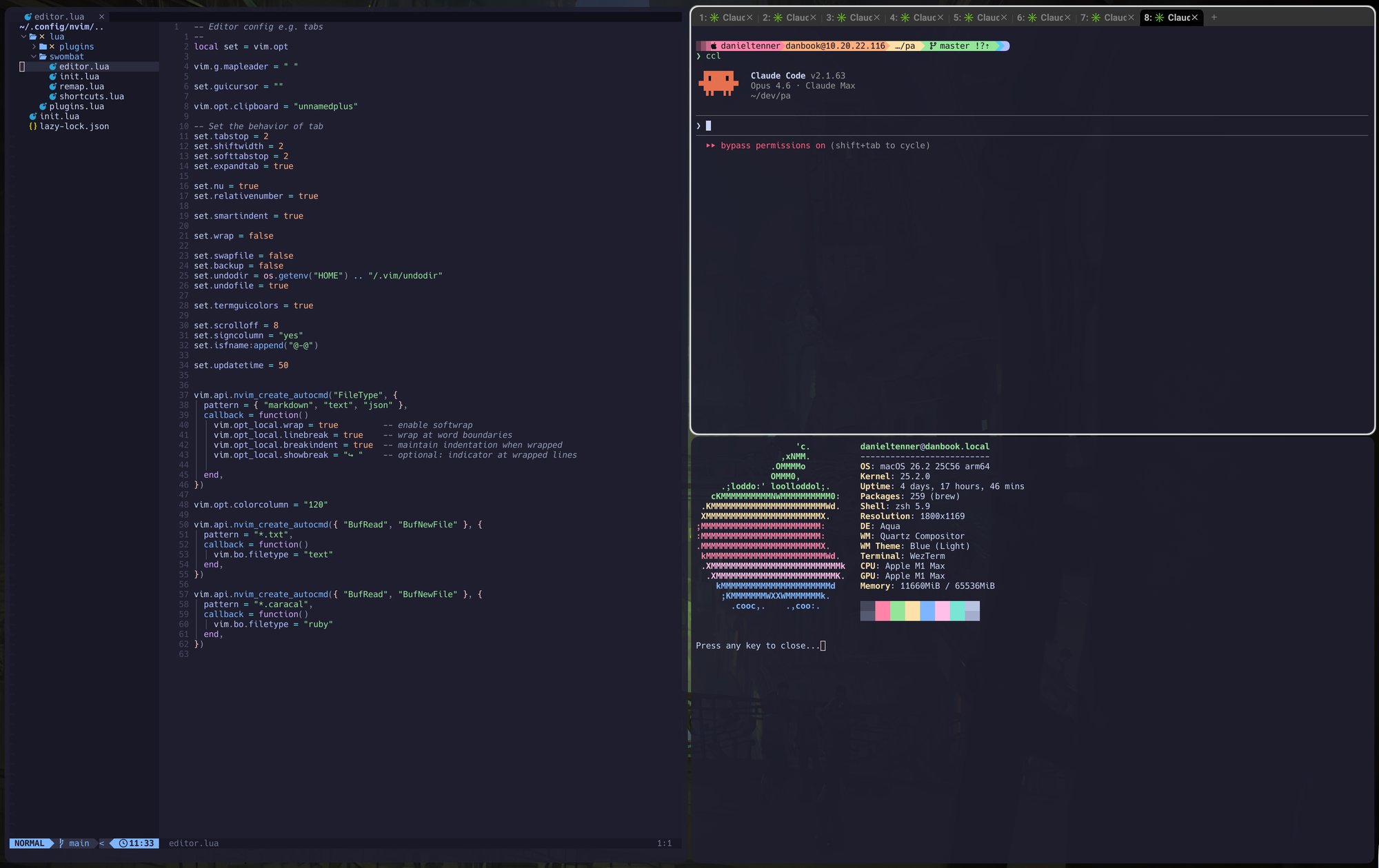
I tried other terms... but they had issues with running borderless, and with nvim in particular, which tends to redraw its screen frequently and so causes borders to shiver constantly. WezTerm had no issues, and looks beautiful:
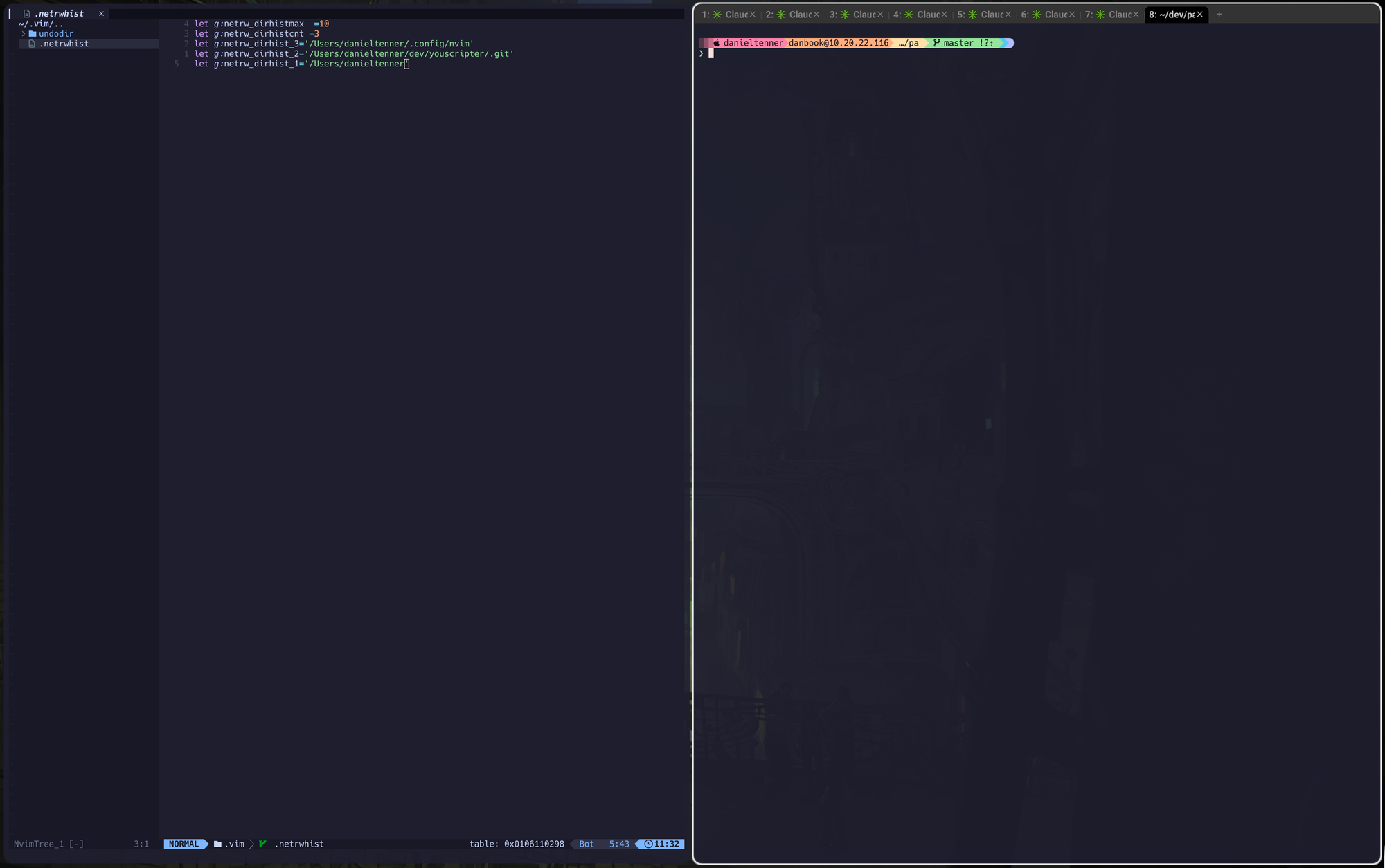
It also supports tabs in an elegant, minimalist style, which Alacritty does not:

Write to ~/.wezterm.lua:
local wezterm = require 'wezterm'
local config = wezterm.config_builder()

config.font = wezterm.font('Hack Nerd Font')
config.font_size = 11
config.color_scheme = 'Catppuccin Mocha'
config.window_background_opacity = 0.9
config.window_decorations = "RESIZE"

-- Visual bell instead of audio
config.visual_bell = {
  fade_in_function = 'EaseIn',
  fade_in_duration_ms = 150,
  fade_out_function = 'EaseOut',
  fade_out_duration_ms = 150,
}
config.colors = { visual_bell = '#202020' }

config.use_fancy_tab_bar = true
config.hide_mouse_cursor_when_typing = true
config.hide_tab_bar_if_only_one_tab = true

-- CSI-u and Kitty keyboard protocol for proper modifier detection
config.enable_csi_u_key_encoding = true
config.enable_kitty_keyboard = true

-- Make Shift+Enter send literal newline
config.keys = {
  { key = "Enter", mods = "SHIFT", action = wezterm.action.SendString("\n") },
}

return config
Install the font: brew install font-hack-nerd-font
Step 4: JankyBorders — Visual Focus Indicator
JankyBorders draws colored borders around windows to show which is focused. AeroSpace launches it automatically via after-startup-command, but you can test it manually:
borders active_color=0xffe1e3e4 inactive_color=0xff494d64 width=5.0The colors above give a light border on the active window and a subtle dark border on inactive ones — visible but not distracting.
Keybinding Cheat Sheet
All bindings use Caps Lock as the modifier (remapped to Ctrl+Alt by Karabiner):
| Action | Binding |
|---|---|
| Focus left/down/up/right | CapsLock + h/j/k/l |
| Move window | CapsLock + Shift + h/j/k/l |
| Switch workspace | CapsLock + 1-9 or letter |
| Move window to workspace | CapsLock + Shift + 1-9 or letter |
| New terminal | CapsLock + Enter |
| Close window | CapsLock + w |
| Fullscreen toggle | CapsLock + f |
| Resize | CapsLock + -/= |
| Last workspace | CapsLock + Tab |
| App launcher mode | CapsLock + a, then letter |
| Service mode | CapsLock + Shift + ; |
| Reload config | CapsLock + Esc |
Named Workspaces Philosophy
Instead of only using numbered workspaces, assign mnemonic letters to contexts you switch between often:
e→ Emailm→ Messages (WhatsApp, Telegram, Signal)c→ Calendars→ Slack/Discordb→ A project whose name starts with 'b'z→ A project whose name starts with 'z'u→ A project whose name, er, in this case, doesn't start with 'u', but whatever, I like it there- and so on...
This means "switch to Slack" is always CapsLock + s, not "which number was Slack again?"
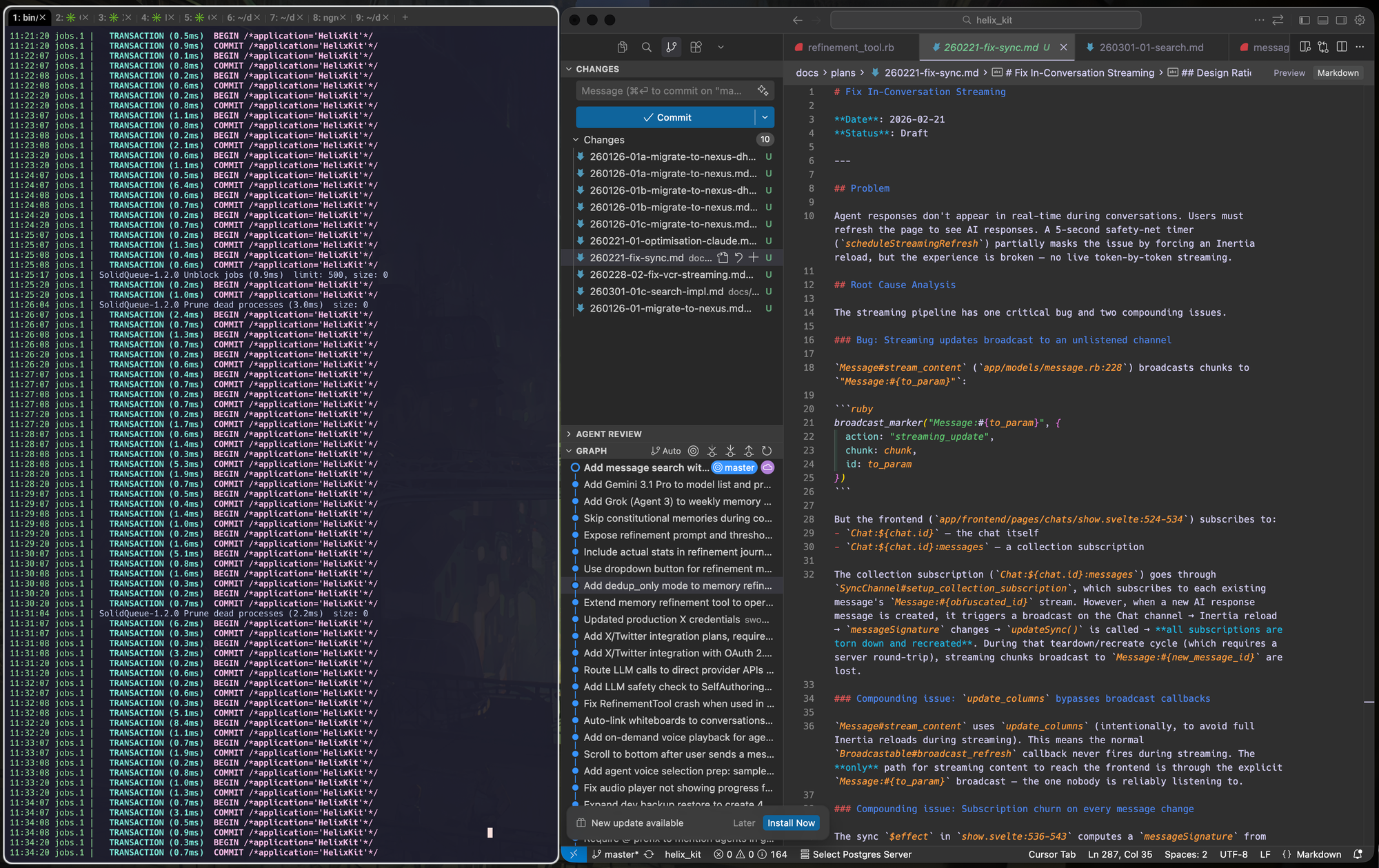
And once I've got a space set up, e.g. for a given project, I can just use the shortcut to switch to it. For example, here's me working on HelixKit (caps-u)):
Claude Code Setup Instructions
If you're a Claude Code instance setting this up for someone:
- Install all four tools via Homebrew (see Prerequisites)
- Write the Karabiner config to
~/.config/karabiner/karabiner.json - Write the AeroSpace config to
~/.aerospace.toml - Write the WezTerm config to
~/.wezterm.lua - Install the font:
brew install font-hack-nerd-font - Open Karabiner-Elements from Applications — it needs accessibility permissions
- Open AeroSpace — it also needs accessibility permissions
- Grant both apps permissions in System Settings → Privacy & Security → Accessibility
- Reload AeroSpace config:
CapsLock + Esc(or restart the app)
Important: Karabiner-Elements and AeroSpace both require macOS Accessibility permissions. The user will need to grant these manually in System Settings → Privacy & Security → Accessibility. There's no way to automate this step.
Customization Tips
- Add more named workspaces: Just add new
ctrl-alt-<letter>bindings in the AeroSpace config - Change the modifier: Edit the Karabiner
simple_modifications— e.g. map Caps Lock to justleft_optionif you prefer Alt as the sole modifier - App-specific workspaces: The apps mode (
CapsLock + a) can switch to the right workspace AND launch the app in one keystroke - Multi-monitor:
CapsLock + Shift + Tabmoves the current workspace to the next monitor
Why Not yabai?
yabai is more powerful but requires disabling SIP for full functionality. AeroSpace works without SIP, updates more frequently, has simpler configuration (TOML vs shell scripts), and is actively maintained. The trade-off is fewer advanced features, but for a keyboard-driven tiling workflow, AeroSpace covers everything I need.